
Why Bare Fingers Work on Capacitive Touchscreens
Capacitive touchscreens (the kind on most phones and tablets) work by sensing tiny changes in an electrical field on the surface of the glass. Your bare finger naturally conducts a small electrical charge, so when you touch the screen, the device detects that change and translates it into a tap, swipe, or pinch. That’s why a clean, dry finger usually works with very little pressure.
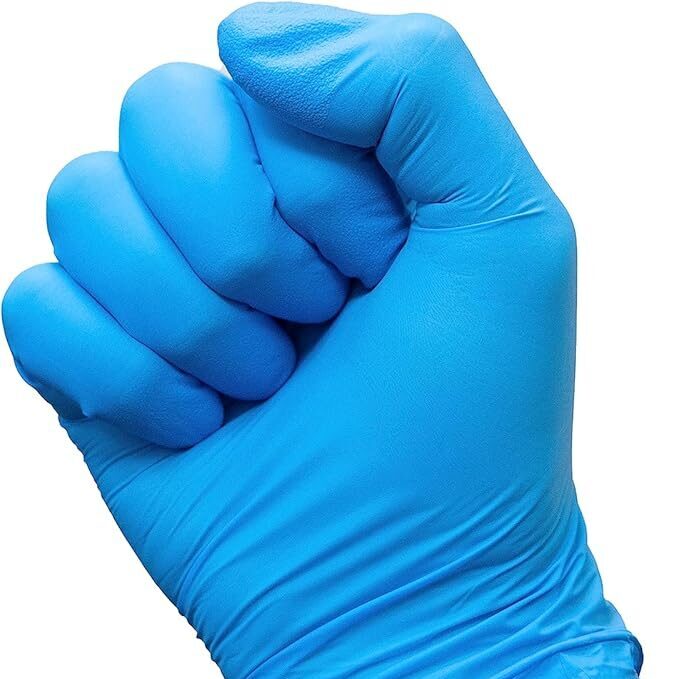
Nitrile gloves are different. Standard nitrile is designed to be a strong barrier against oils, chemicals, and contaminants, and that barrier quality also makes it a good electrical insulator. In practical terms, many standard nitrile gloves block the electrical interaction the screen is looking for, so the device may ignore your touch or respond inconsistently. You might get a tap to register once, then fail on the next attempt, especially when you try to scroll or type quickly. Unless a nitrile glove is built with conductive additives or coatings, expect touchscreen performance to be hit-or-miss.
What “Touchscreen-Compatible” Nitrile Really Means
A glove becomes “touchscreen compatible” when it includes a conductive pathway that can interact with the screen’s electrical field. The most common approach is conductive fingertips, where the glove uses a conductive coating or treatment in specific touch zones so the screen can detect your contact. Some products use carbon-based additives or other conductive materials blended into the glove material, and others apply a targeted coating to the fingertip area to create a more reliable contact point.
The key is clarity. If touchscreen use matters to you, look for explicit labeling that calls out conductive fingertips or dedicated touch zones, not just a broad “touchscreen friendly” claim. Vague language often means the glove wasn’t engineered for consistent capacitive response, and performance may depend on the phone model, screen protector type, dryness of the glove surface, and how hard you press. A good box label should tell you where the conductive area is and what kind of touchscreen the glove is designed to work with, so you’re not guessing on the job.
How Thin Nitrile Improves Taps and Swipes
We hear this all the time: “My thin nitrile gloves work fine on my phone.” Sometimes they do, and there’s a reason. Thinner gloves can improve fingertip precision and pressure transfer, which makes it easier to hit small icons, type on a cramped keyboard, and perform quick gestures like swiping down notifications. When the glove is thin, you’re also more likely to keep a natural finger shape instead of a rounded, padded fingertip that smears across the screen.
Thin does not automatically mean touchscreen compatible. Even a very thin nitrile glove is still an insulator unless it includes conductive material. What often happens is that a thin glove seems to work under certain conditions, like on a highly sensitive screen, with a specific screen protector, or when there’s a bit of humidity that changes how the screen responds. Then conditions change, and performance drops. Thin gloves can improve control and accuracy, but they’re not a reliable substitute for true conductive touch zones.
Reliable Touchscreen Workarounds for Heavier Gloves
If you need heavier gloves for protection, the simplest workaround is a stylus designed for capacitive screens. A good stylus gives you consistent taps, better accuracy for small buttons, and less frustration when you’re trying to complete a checklist, capture photos, or log work orders. Keep a stylus tethered near the workstation, in a pocket, or on a lanyard so it becomes part of the routine instead of a tool that disappears mid-shift.
Another option is process-based: designate a “clean” device operator. In many shops and facilities, one person can handle the phone or tablet while others remain focused on the task with gloves on. This reduces cross-contamination and keeps devices from becoming the dirtiest surface in the room. If your workflow requires everyone to use a device, a compatible screen protector can sometimes improve responsiveness and make the surface easier to disinfect, but it won’t turn non-conductive gloves into conductive ones.
What we try to avoid is constant glove removal and re-donning just to use a phone. Every time you take gloves off and put them back on, you increase the risk of tearing, stretching the cuff, and contaminating your hands or the inside of the glove. It also adds time and breaks focus. If you’re reaching for a device often, it’s usually better to plan for that with a thin glove choice, a stylus, or a dedicated device-handling step in the process.
Choose the Right Glove for Your Job
When we match glove selection to real-world use, we start with the job requirements, not the phone. If your day includes frequent device interaction, fine tapping, barcode scanning, photo documentation, or digital checklists, our BODYGUARD 4 mil option is typically the most workable choice because the thinner profile improves dexterity and fingertip control. It’s not a promise of perfect capacitive response in every scenario, but if you need to type, tap, and move quickly, thin nitrile gives you the best chance of usable interaction while maintaining barrier protection.
For general work where you might only need to unlock a phone, answer a call, or confirm a step in an app occasionally, NIGHTWATCH 6 mil is a strong middle-ground. The added thickness supports durability and puncture resistance compared to ultra-thin gloves, and when you do need device access, a stylus usually handles the gap without forcing you to compromise protection. This is a common fit for maintenance tasks, light industrial work, and routine shop use where you’re moving between tools, parts, and a device a few times per hour.
For higher-risk work, CHAMPION 8 mil is the choice when durability matters more than phone usability. In industrial and automotive contexts, thicker gloves can help with abrasion, rough edges, and more demanding handling. If you’re dealing with harsher conditions, messy chemicals, or sharp components, prioritize hazard protection first and treat the phone as secondary. In those environments, a stylus, a ruggedized device, or a designated device operator is usually the right tradeoff so you’re not tempted to downgrade protection just to swipe a screen.
A Two-Minute Touchscreen Test for Your Gloves
If you want a quick, practical way to judge what will work for you, we suggest a simple test protocol that takes about two minutes. First, with a dry glove fingertip, try tapping small icons on your home screen, then open a page and scroll up and down for ten seconds. Next, try pinch-to-zoom on a photo or map. These three actions cover most of what frustrates people: accuracy, continuous contact, and multi-touch gestures.
Then repeat the same steps with a capacitive stylus and compare the results. If the stylus feels consistently better, that’s a strong signal you should keep one in your workflow, especially for thicker gloves. Finally, repeat the glove test with slightly damp conditions, not soaking wet, just a small amount of moisture. Moisture can change how the screen reads inputs and how the glove surface contacts the glass, which can make performance seem better or worse depending on the device. Testing both dry and slightly damp helps you avoid false confidence based on one set of conditions.
Keep Phones and Tablets Clean During Glove Use
Phones and tablets are some of the highest-touch surfaces in any work setting, and they often get handled at the worst possible moments, mid-task, with dirty gloves. That means they can quickly become a contamination hub, transferring residues back to hands, benches, tool handles, and even vehicle interiors. Our rule of thumb is simple: if you touched the device with gloves on, treat the device as contaminated until it’s cleaned.
Build a routine around wiping devices appropriately for your environment and the manufacturer’s guidance. In many cases, that means using approved disinfectant wipes and allowing proper contact time, not just a quick swipe. If your work involves oils, solvents, or heavy grime, consider a screen protector that’s easier to replace and a case that can handle frequent cleaning. Most of all, avoid touching your face, eyes, or clean surfaces after handling a device with gloves. It’s an easy habit to slip into, and it defeats the purpose of wearing gloves in the first place.
Buyer Checklist: Match Touchscreen Needs to Tasks
Before you buy gloves based on touchscreen performance, we recommend a quick checklist. First, decide how often you truly need device interaction: constant typing and tapping, occasional check-ins, or rare emergency use. Second, confirm whether you need reliable capacitive response or just better control and dexterity. Third, match glove thickness to the hazards in your environment, because protection should drive the decision in industrial and automotive work. Fourth, plan your workaround, such as a stylus, a device operator role, or a cleanable case and screen protector, so you’re not forced into risky glove habits mid-task.
If frequent device use is part of your workflow, start with BODYGUARD 4 mil for the best balance of dexterity and workable touchscreen interaction. If you can handle device moments with a stylus, NIGHTWATCH 6 mil is a practical everyday option. If the job is rough and risk is higher, CHAMPION 8 mil is built for durability, and treat the phone as something you access through a stylus or a controlled process.
Direct Answer: How Touchscreen Nitrile Gloves Work
Q: How do touchscreen compatible nitrile gloves work?
A: Touchscreen compatible nitrile gloves work by adding conductive material or coatings, often at the fingertips, so your touch can change a capacitive screen’s electrical field like skin does. Standard nitrile is usually insulating and may not register consistently. Thinner gloves can feel more precise, but true compatibility typically requires conductive touch points or a stylus workaround.